1. Connect and Test I2X Integration 0:00
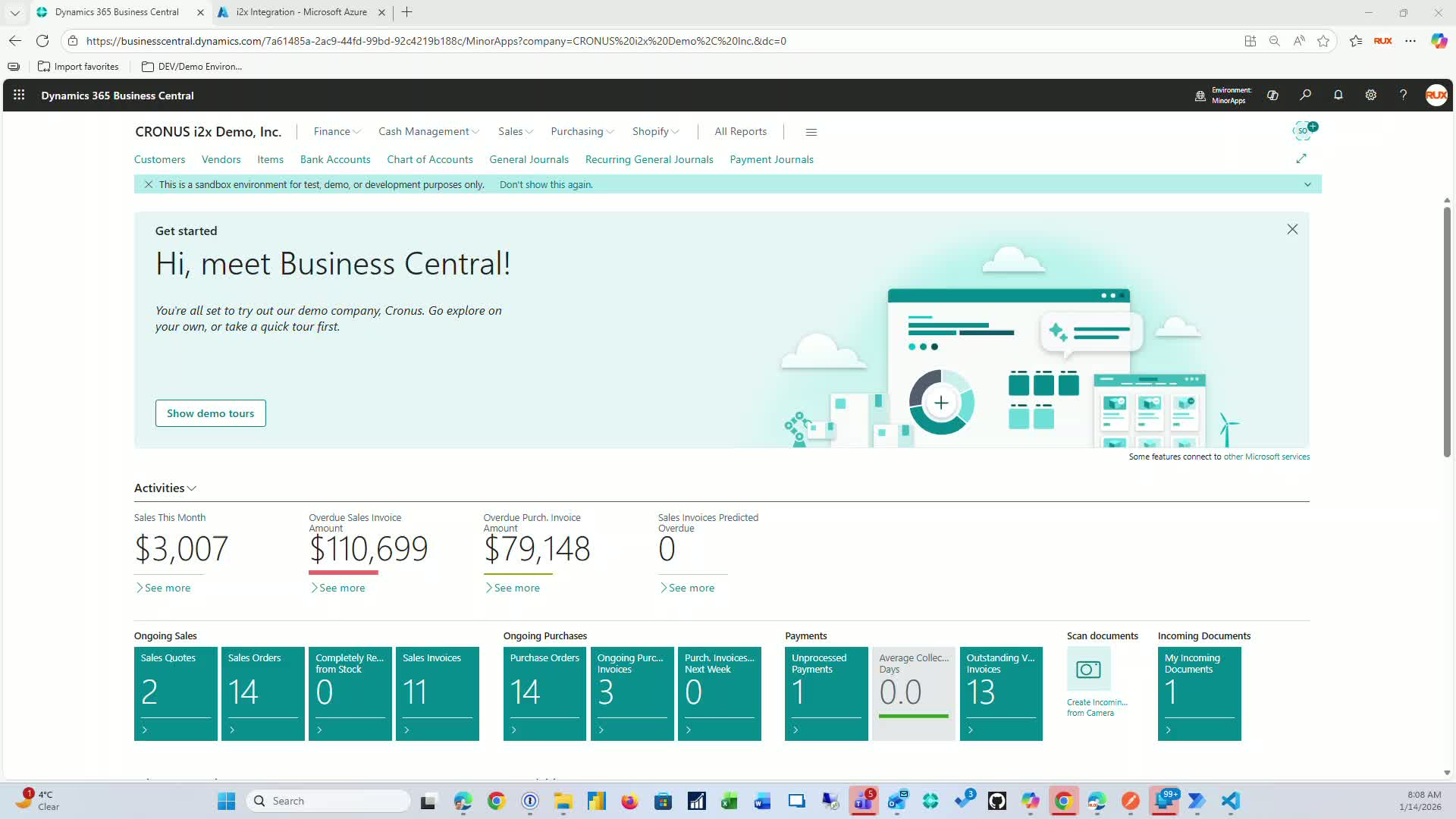
Ensure your I2X integration is connected and tested.
Access the configuration URL endpoint to perform sample queries.
2. Create Platform Codes 0:28
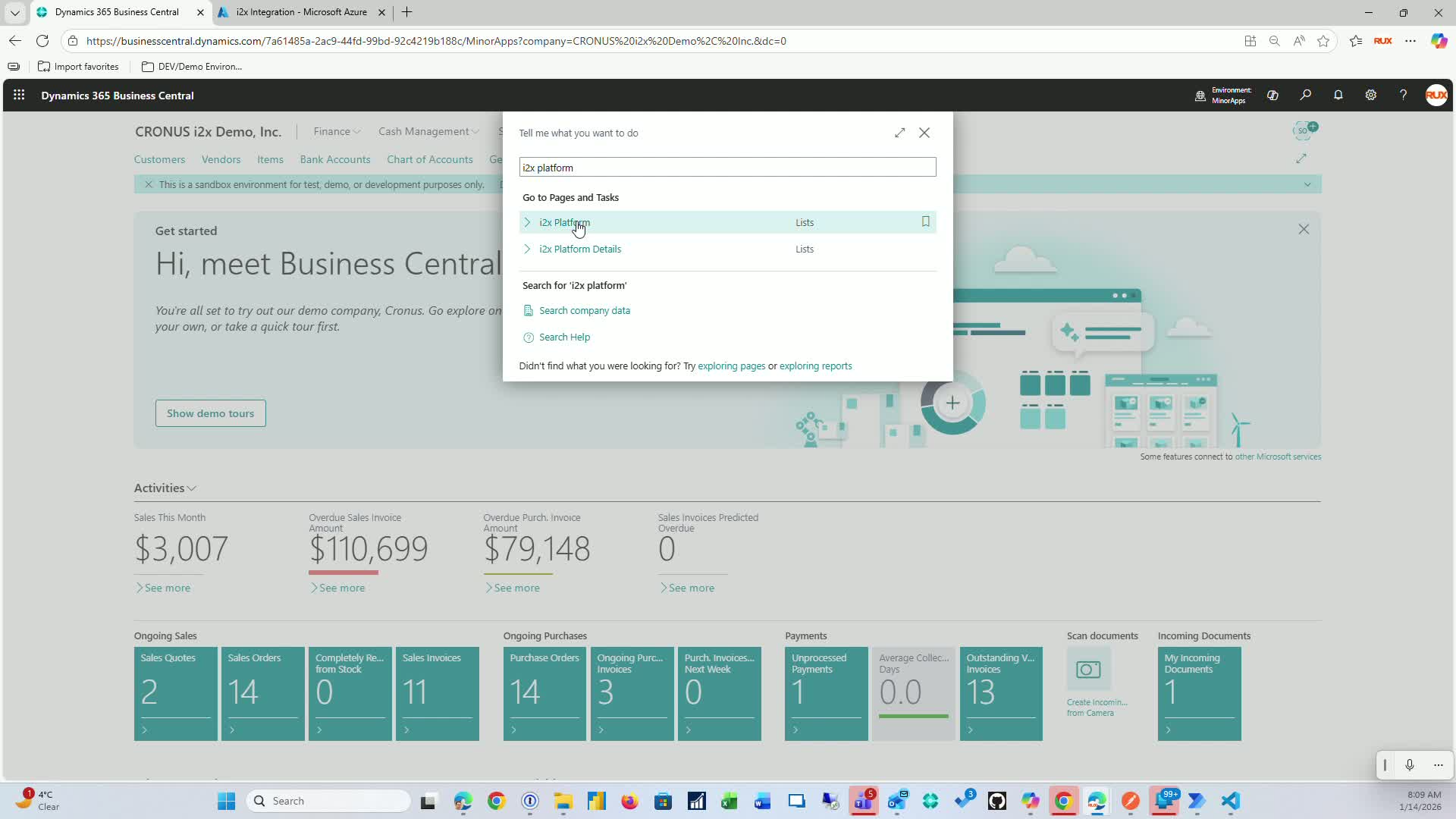
Use the I2X platform to create platform codes (e.g., 'open invoice').
Choose details for the related code.
3. Add Platform Details 0:45
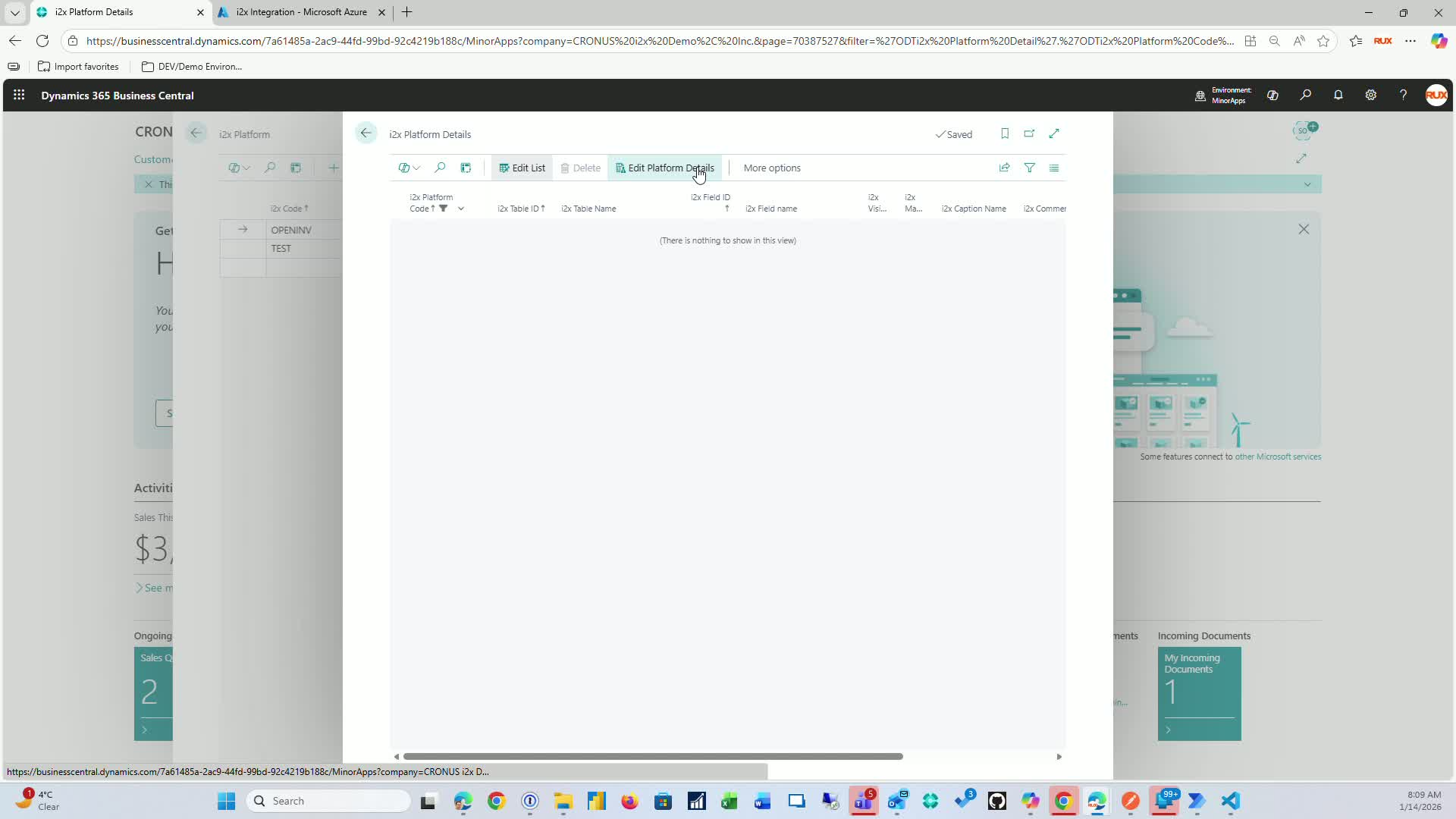
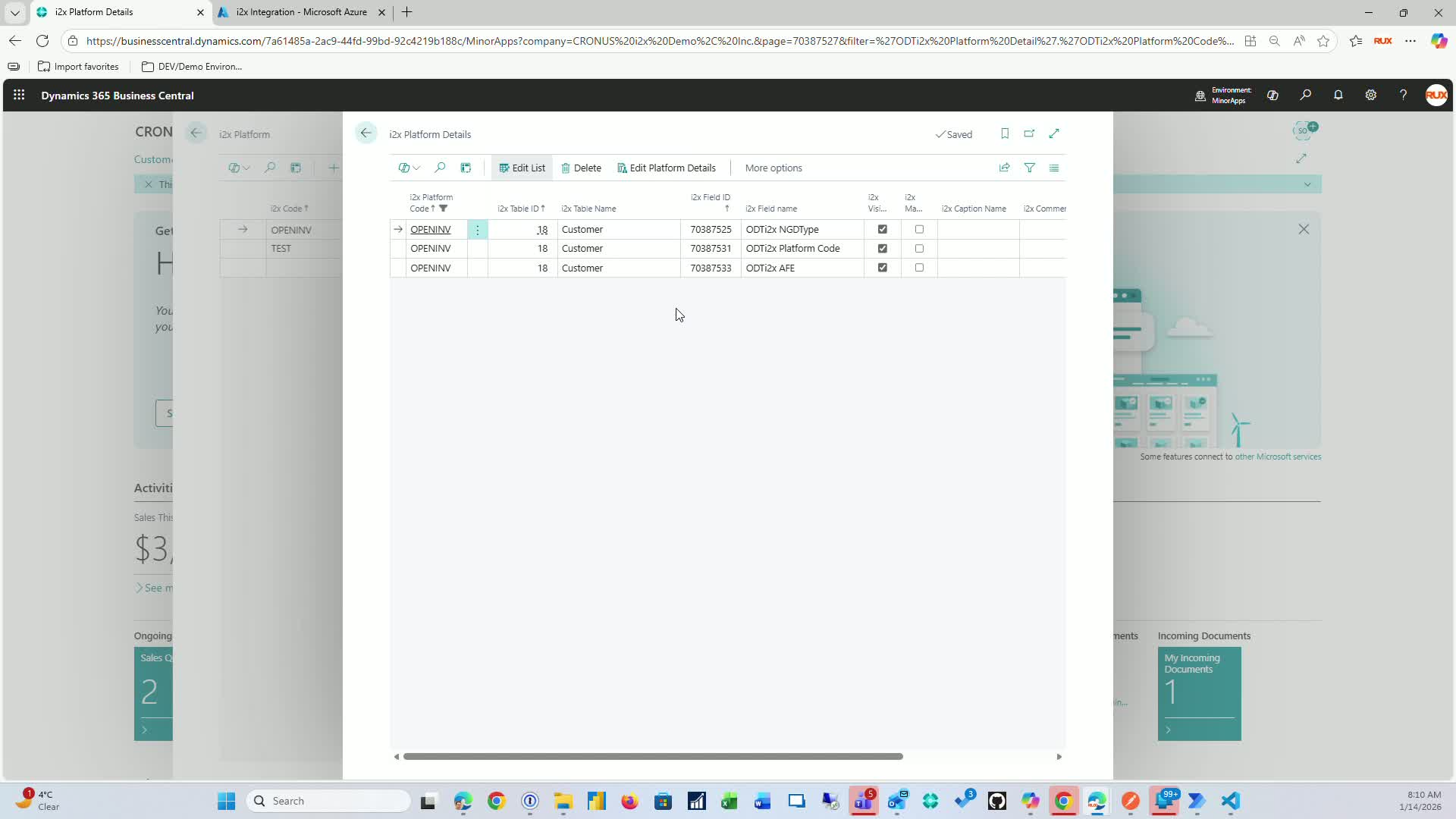
Edit platform details by selecting the table to interact with (e.g., customer table).
Control-click to select fields needed for the platform (e.g., NGD type, platform code, AFE numbers).
4. Insert Lines for Document Types 1:26
Repeat the process for document types (e.g., sales header, sales line).
Choose fields from the invoice header and invoice line as needed.
5. Define Mandatory Fields and Labels 2:34
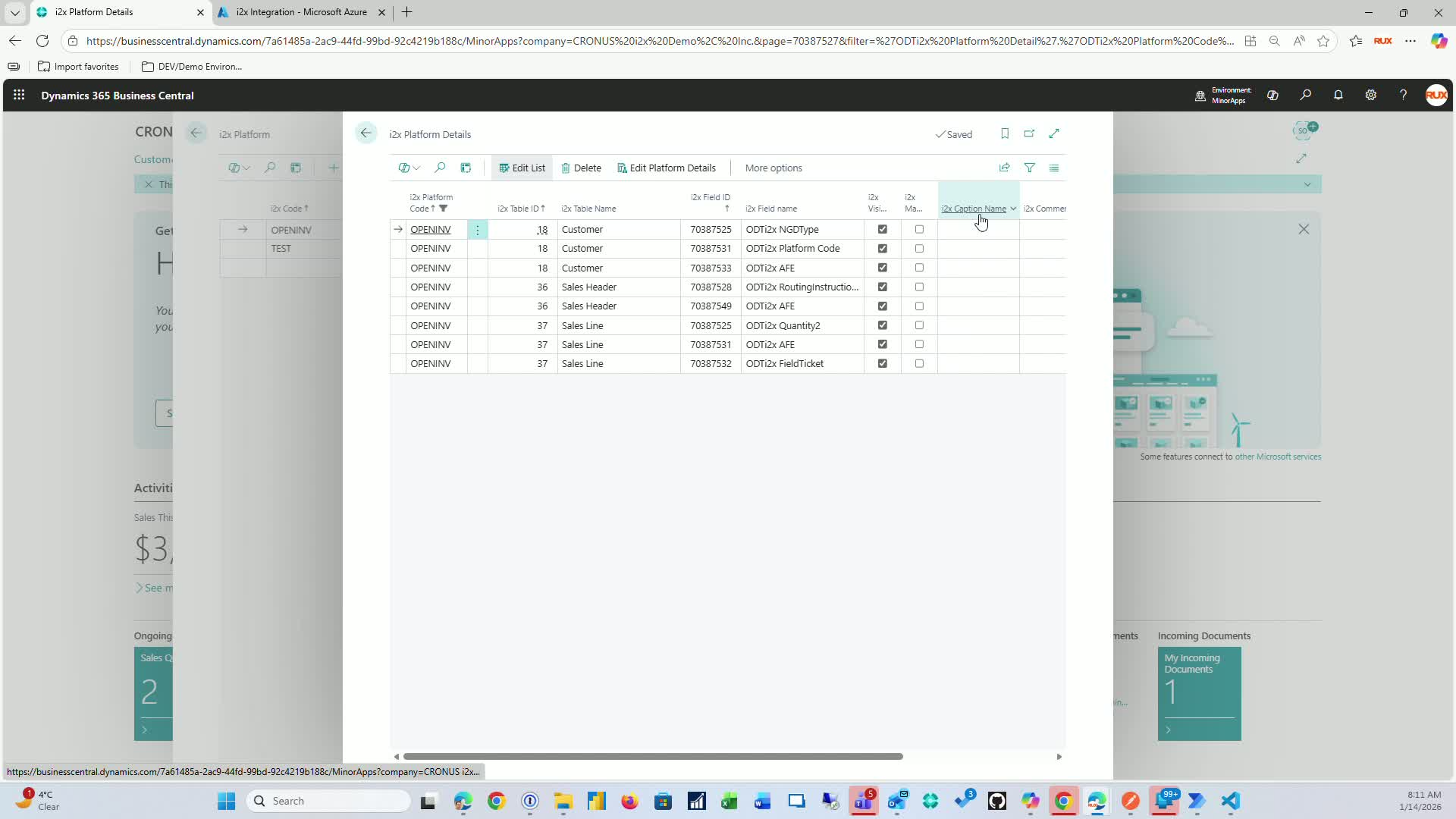
Specify whether a field is mandatory (cannot be blank).
Optionally, provide a different label for the I2X caption name and add comments.
6. Delete Unwanted Rows 3:05
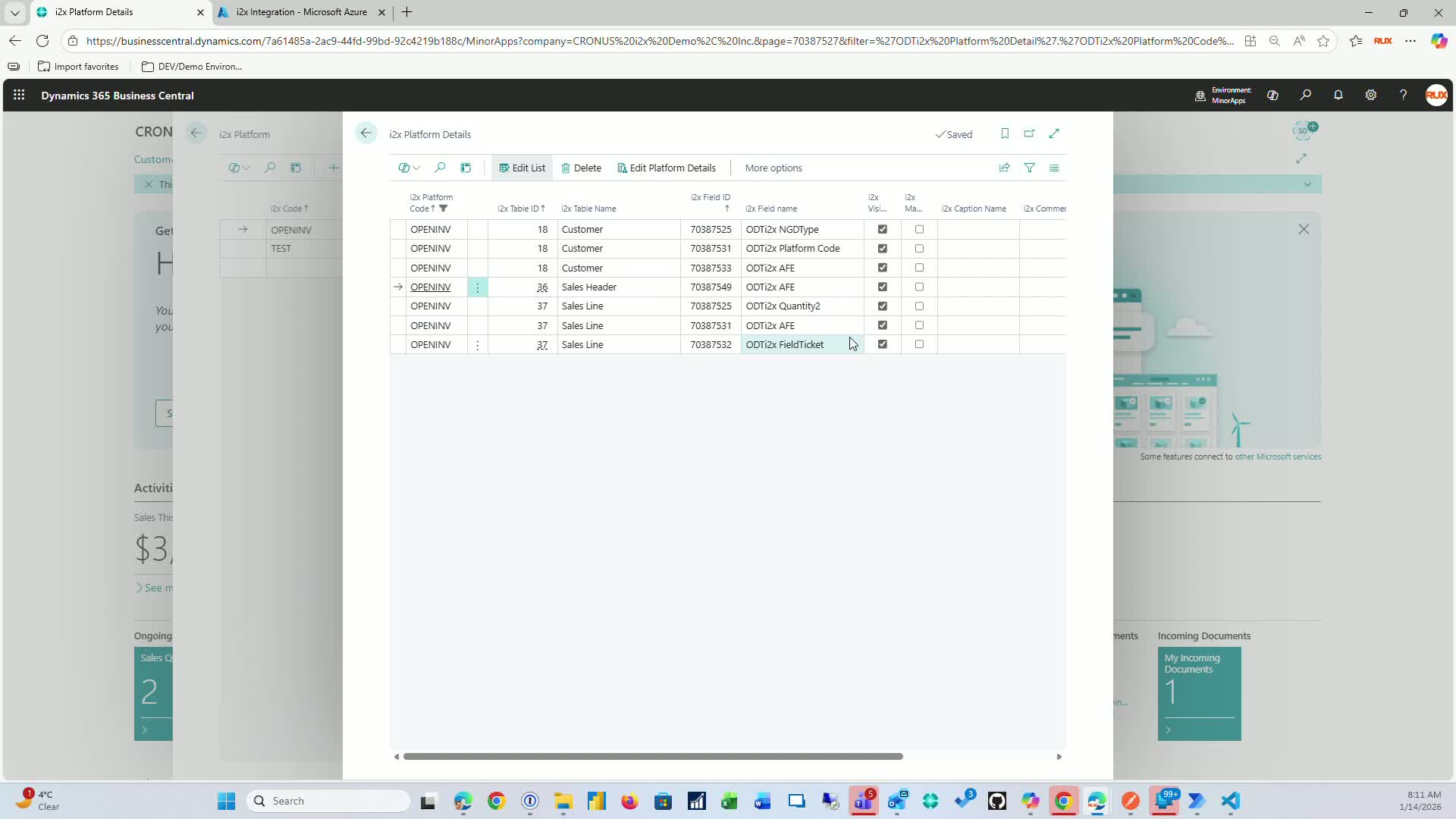
If any extra rows were added unintentionally, delete them.
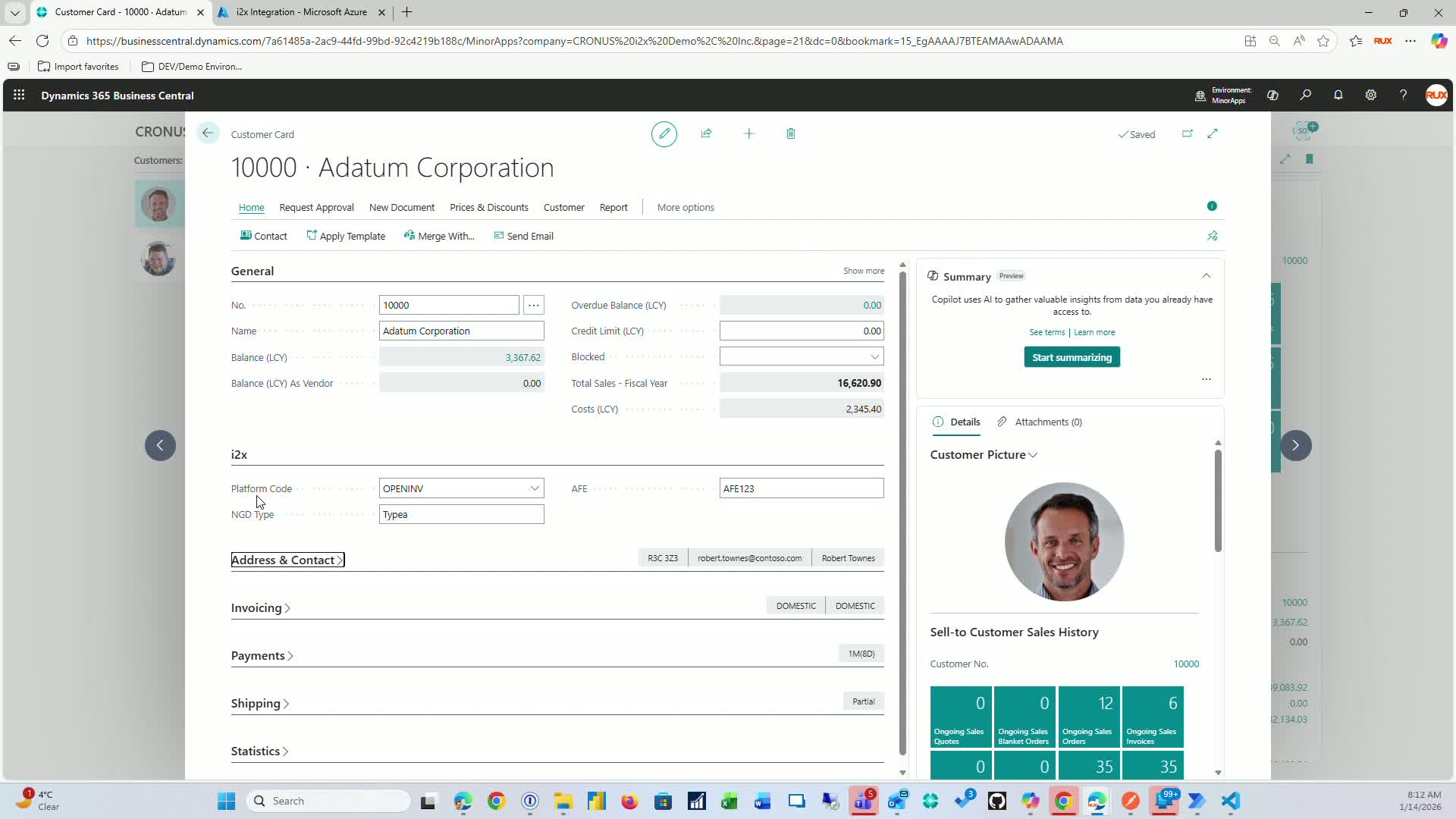
7. Assign Platform to Customer 3:20
Select a customer and assign the platform (e.g., 'open invoice').
Provide necessary values (e.g., AFE 123).
8. Input Fields for New Invoices 3:45
When creating a new invoice, the I2X sections will be available for the header and line items.
Fields exposed include AFE and ticket number.
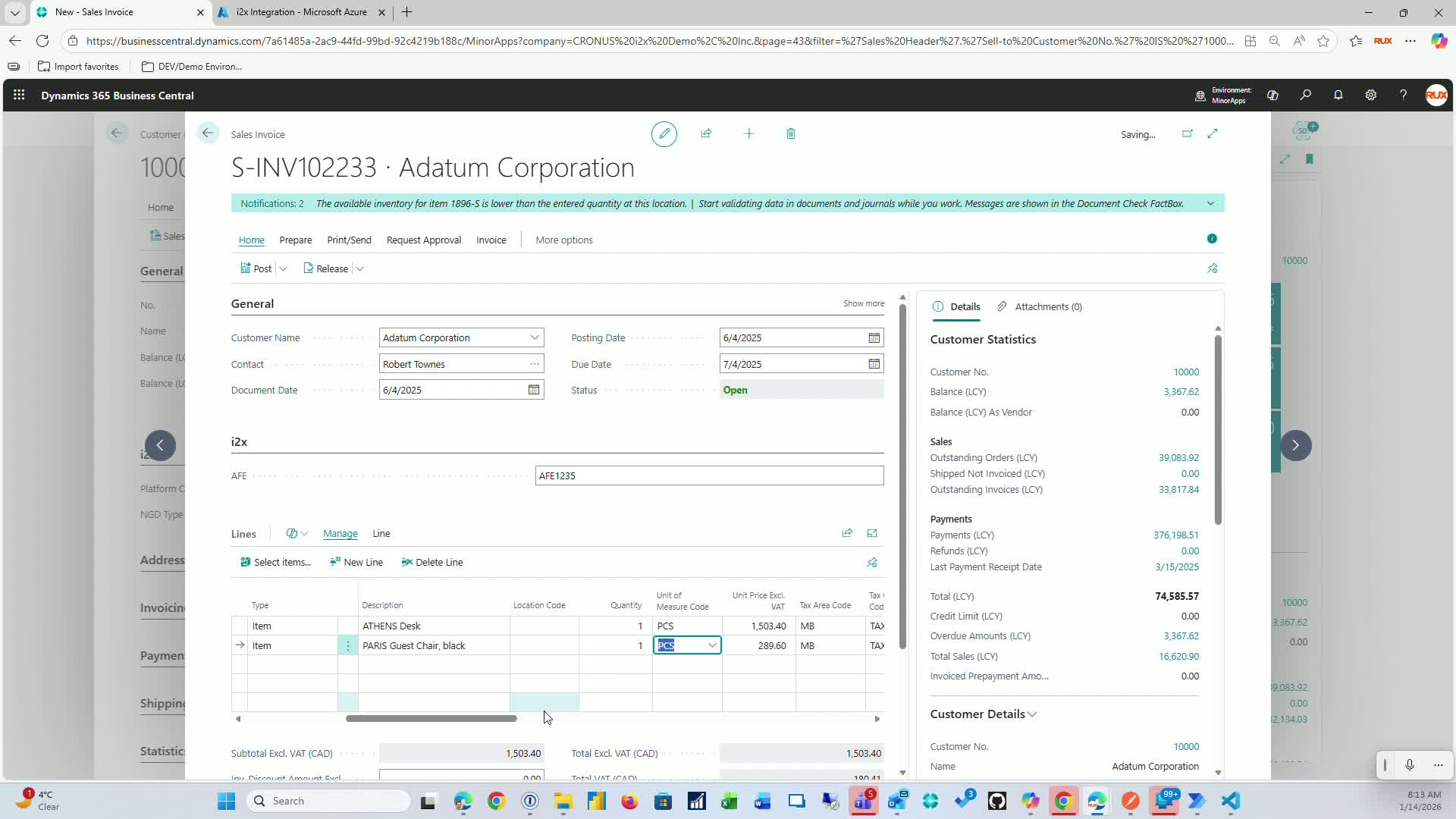
9. Override Default Values 4:11
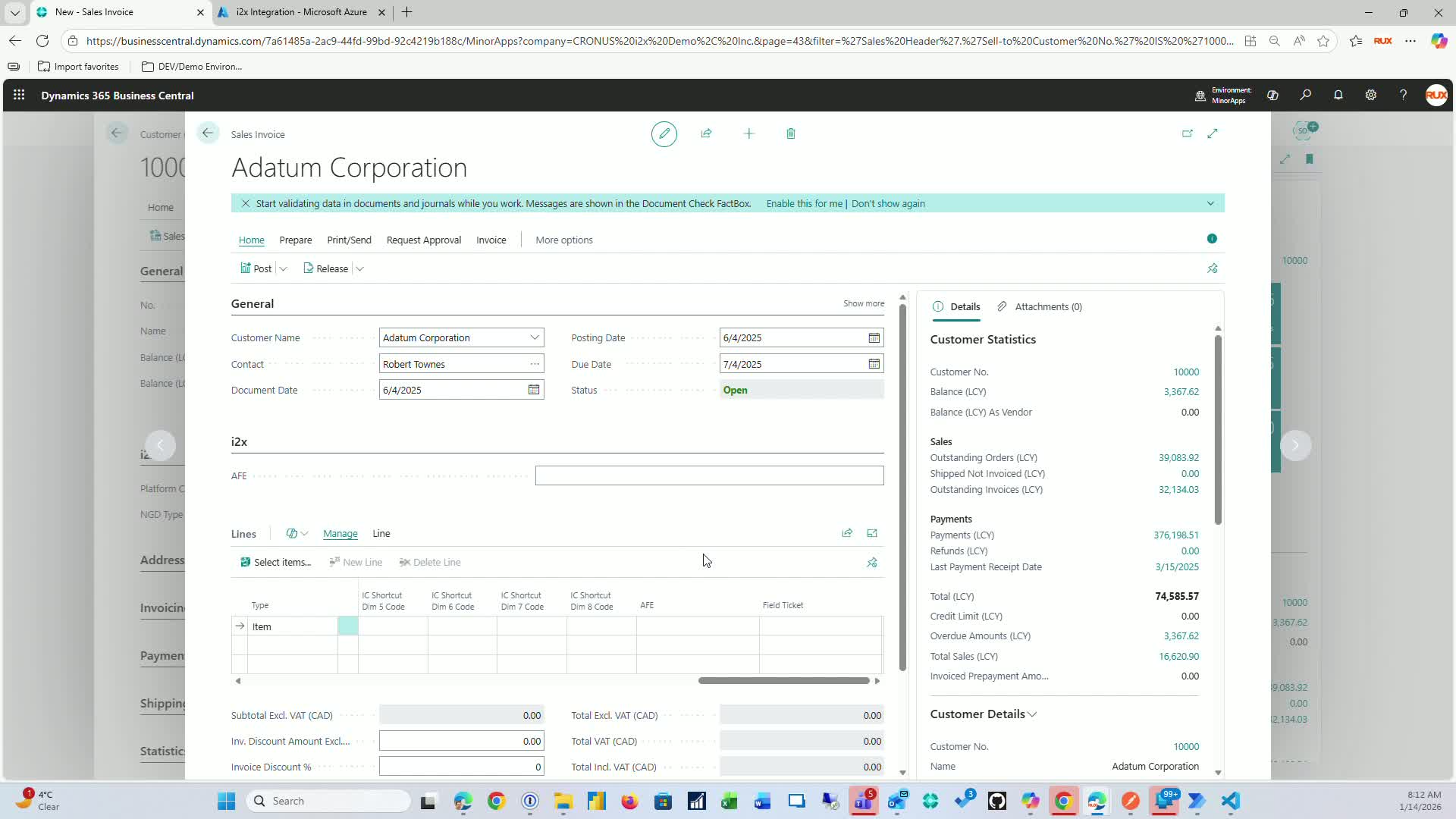
If a field is blank, it will pull the AFE from the customer.
You can override it by entering a new value.
10. Test Configuration with Postman 5:15
Prepare to test using Postman by running the customer's endpoint.
Check that the field values are set correctly in the related I2X fields.
11. Verify Data Mapping 6:00
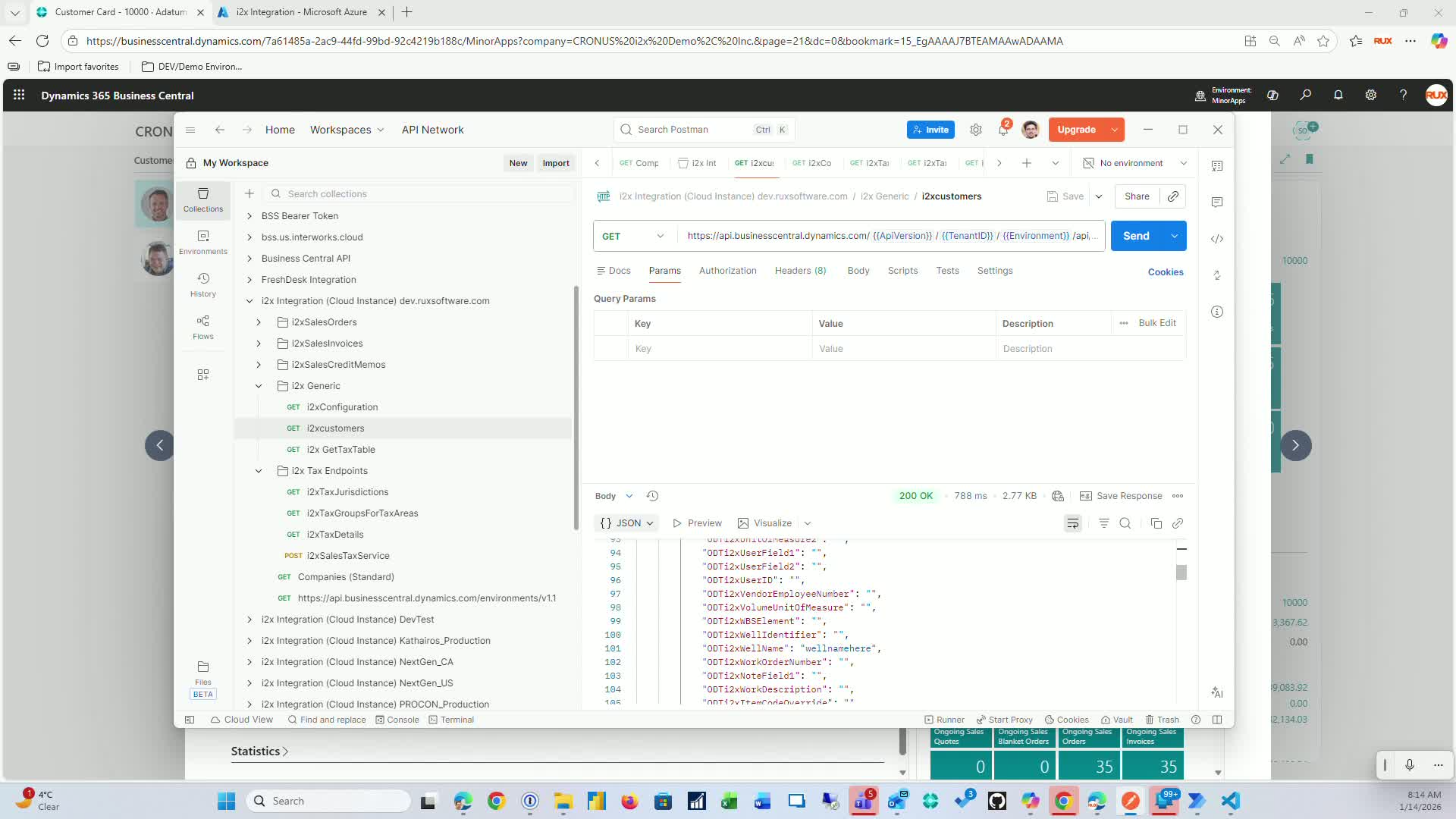
Ensure that the related I2X data is being sent through correctly.
Confirm that both posted and unposted data are mapped properly.
Link to Loom
Was this article helpful?
That’s Great!
Thank you for your feedback
Sorry! We couldn't be helpful
Thank you for your feedback
Feedback sent
We appreciate your effort and will try to fix the article