1. Prepare Your Environment 0:00
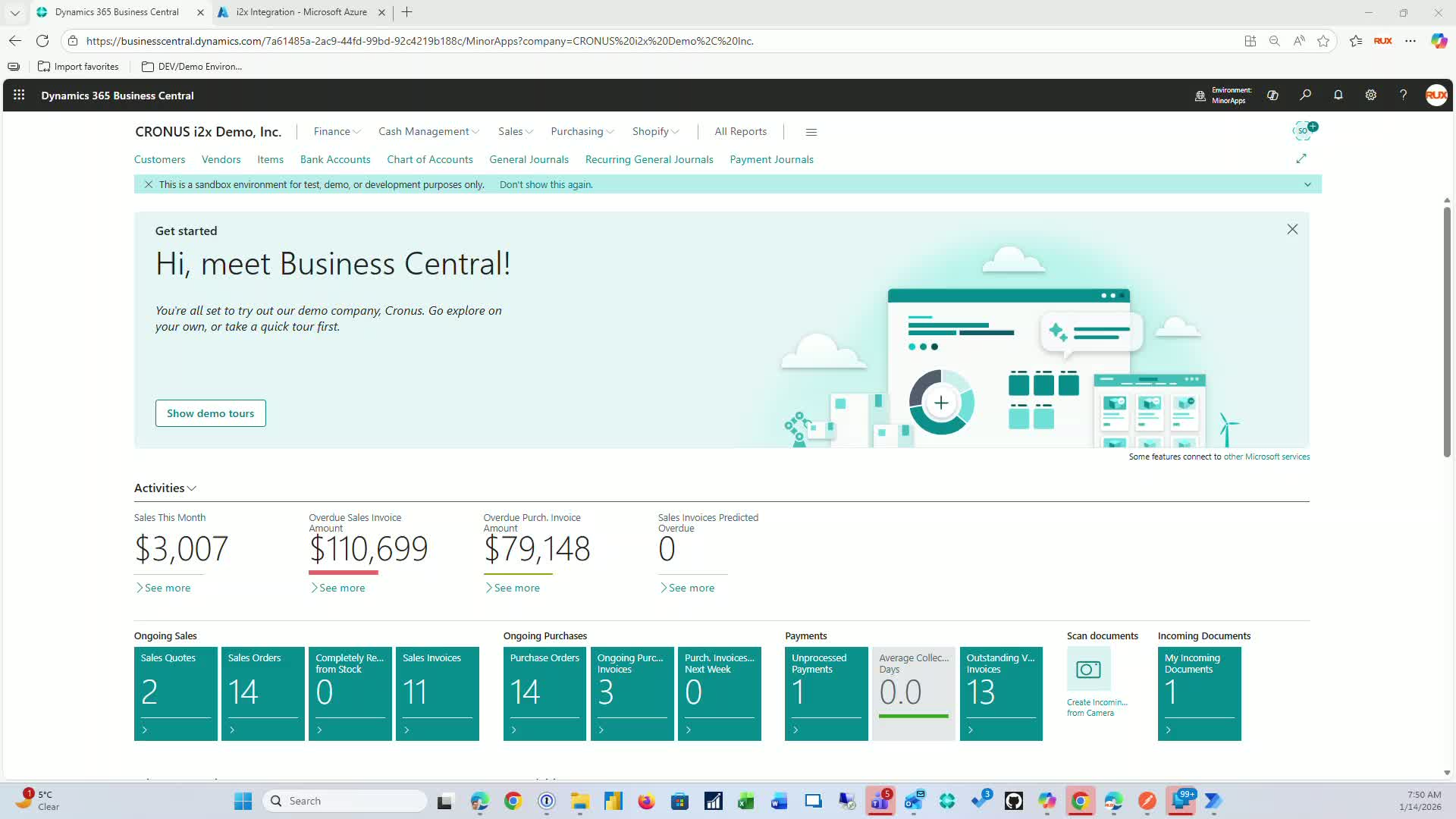
Start by configuring the I2X integration in a sandbox environment.
This allows for testing before deploying to production.
2. Install the I2X App 0:22
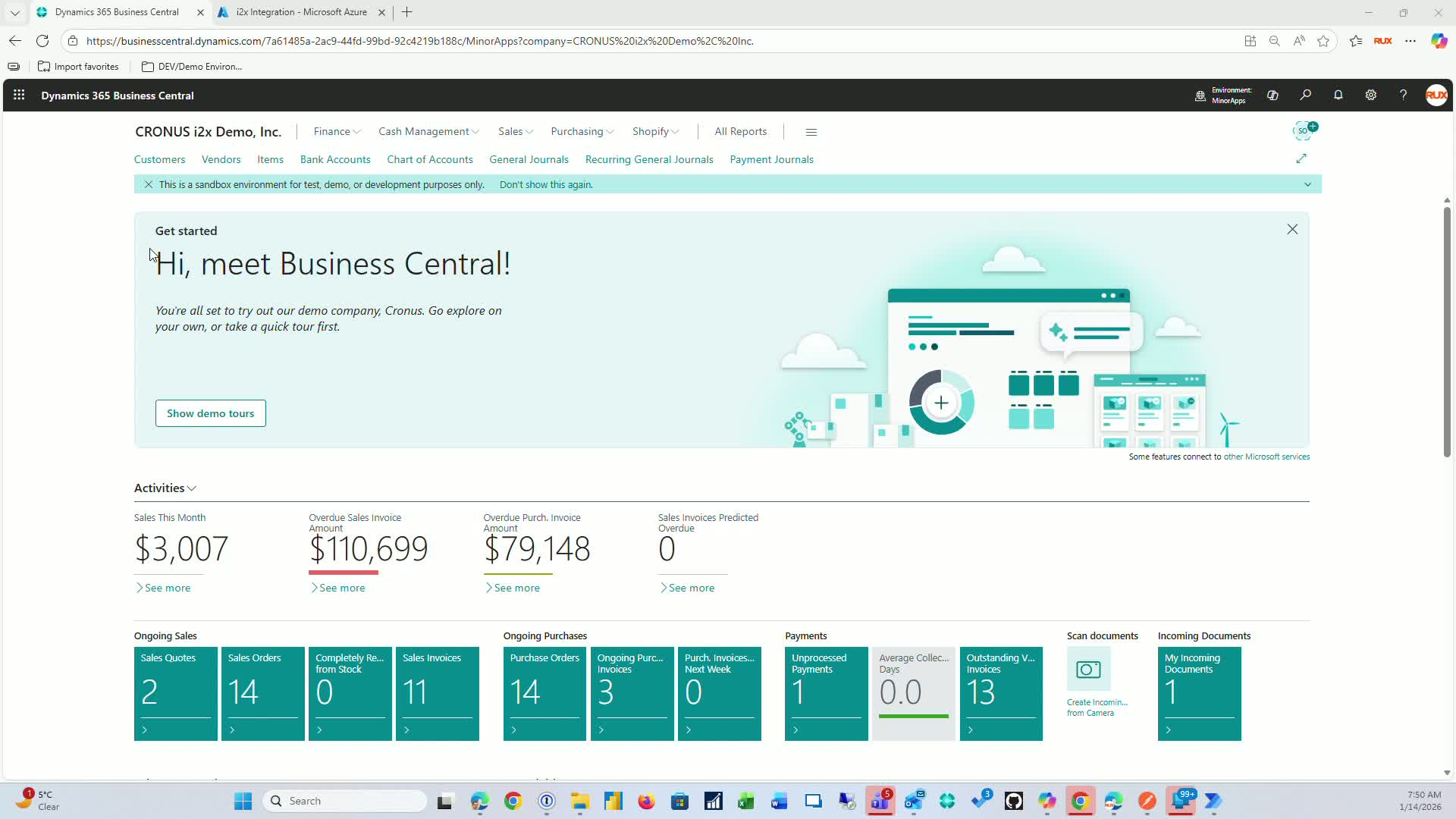
Access the app through App Source:
Search for the I2X app in App Source.
Alternatively, go to Business Central > Extension Management > App Source Gallery and search for I2X.
Log into your environment and install the app.
3. Log into Azure Portal 1:39
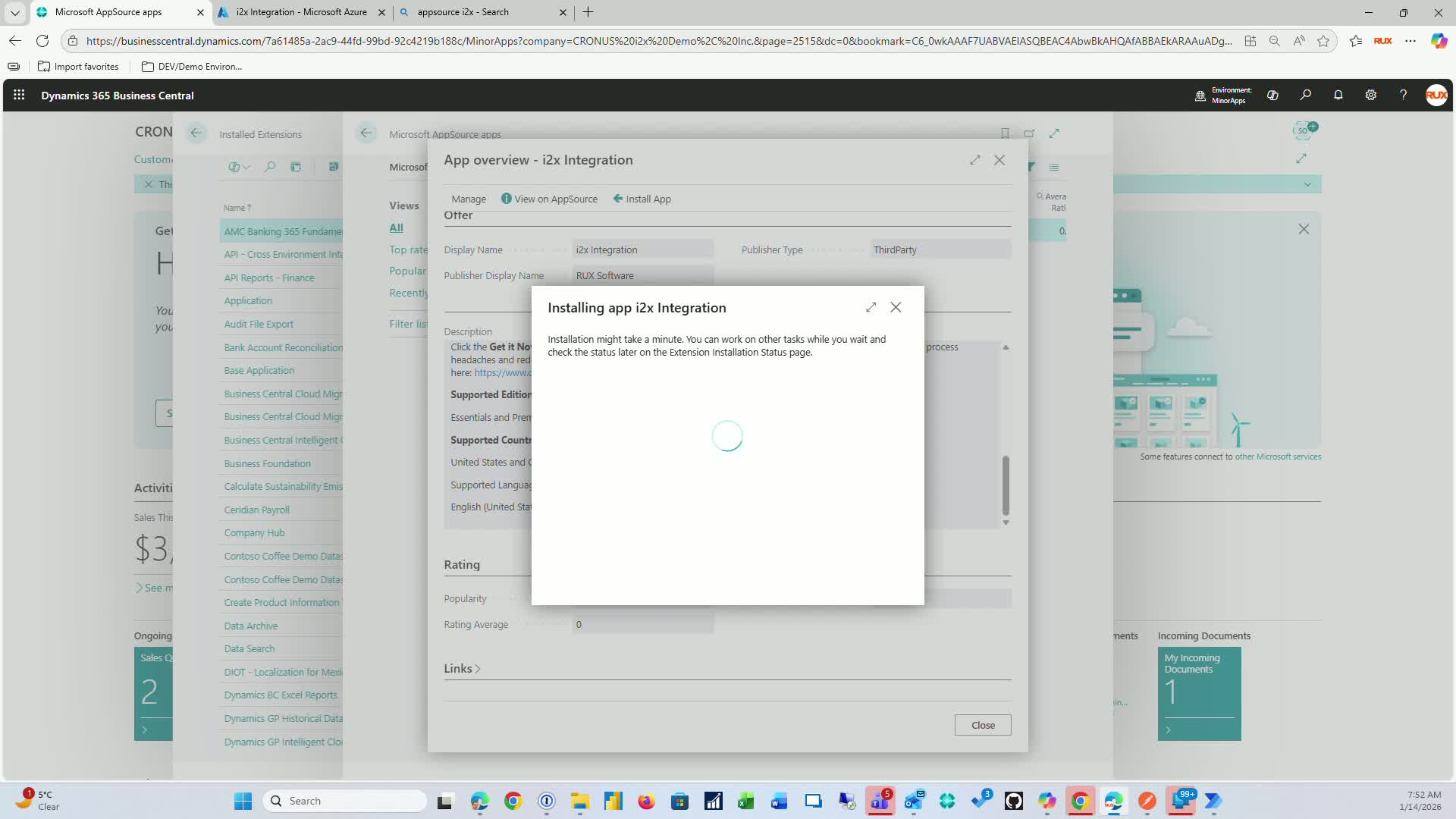
Access the Azure portal to create an app registration for the I2X integration.
4. Create App Registration 1:50
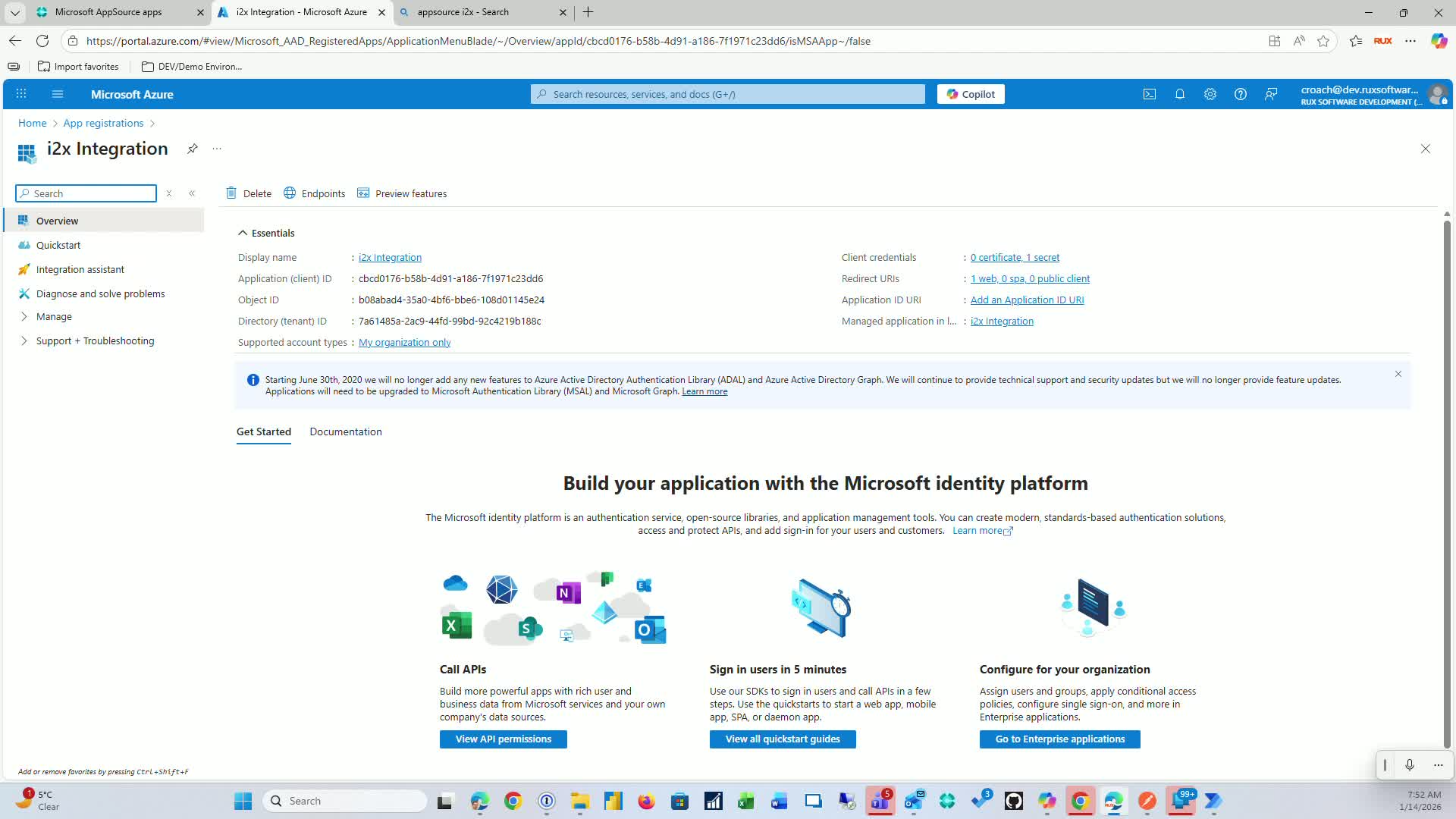
Create a new app registration for I2X integration.
Note the client ID and generate a secret for OAuth authentication.
5. Secure Your Credentials 2:51
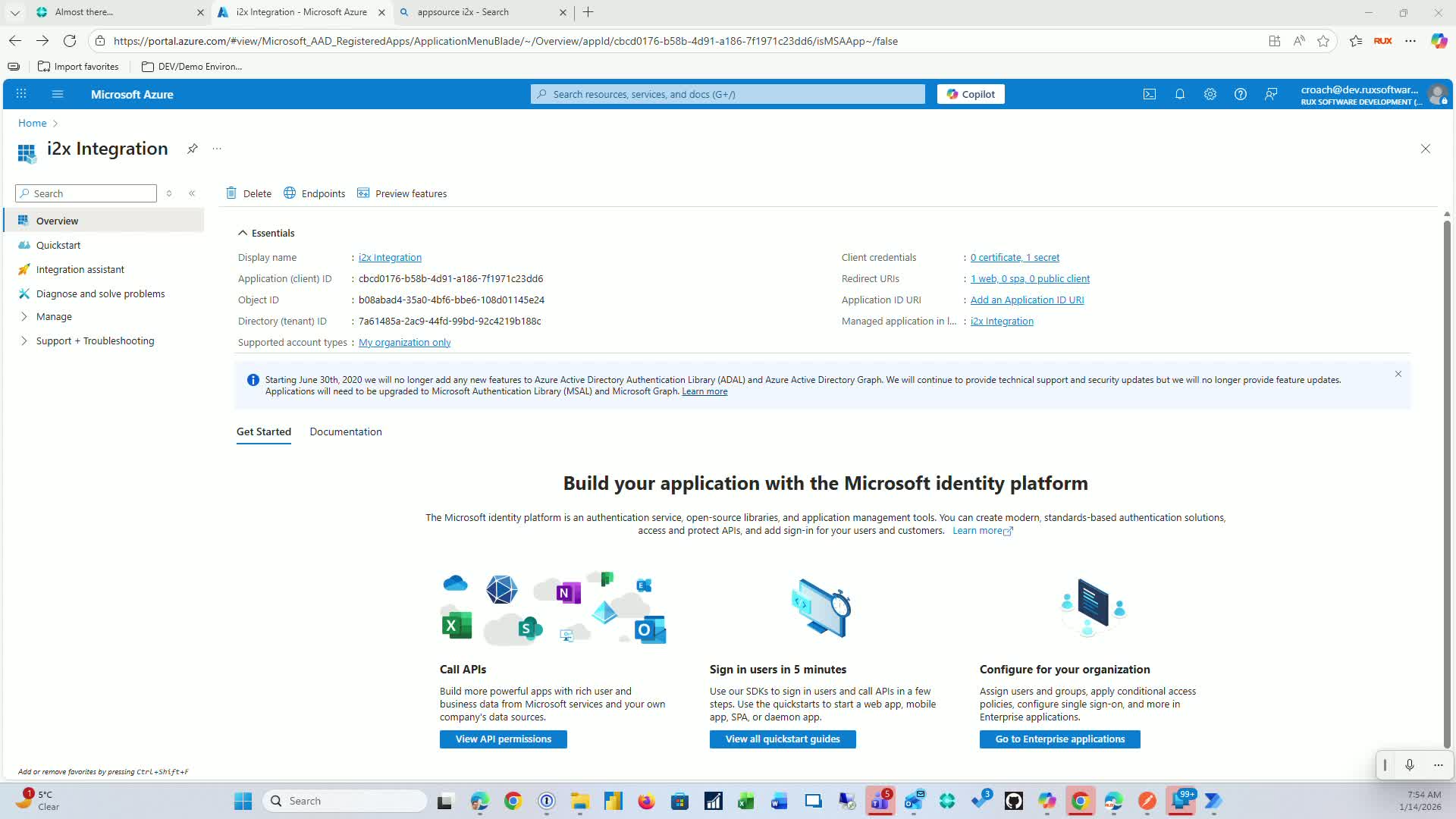
Ensure that the client ID and secret are stored securely and not in unsecured locations.
6. Configure Microsoft Entra Application 3:05
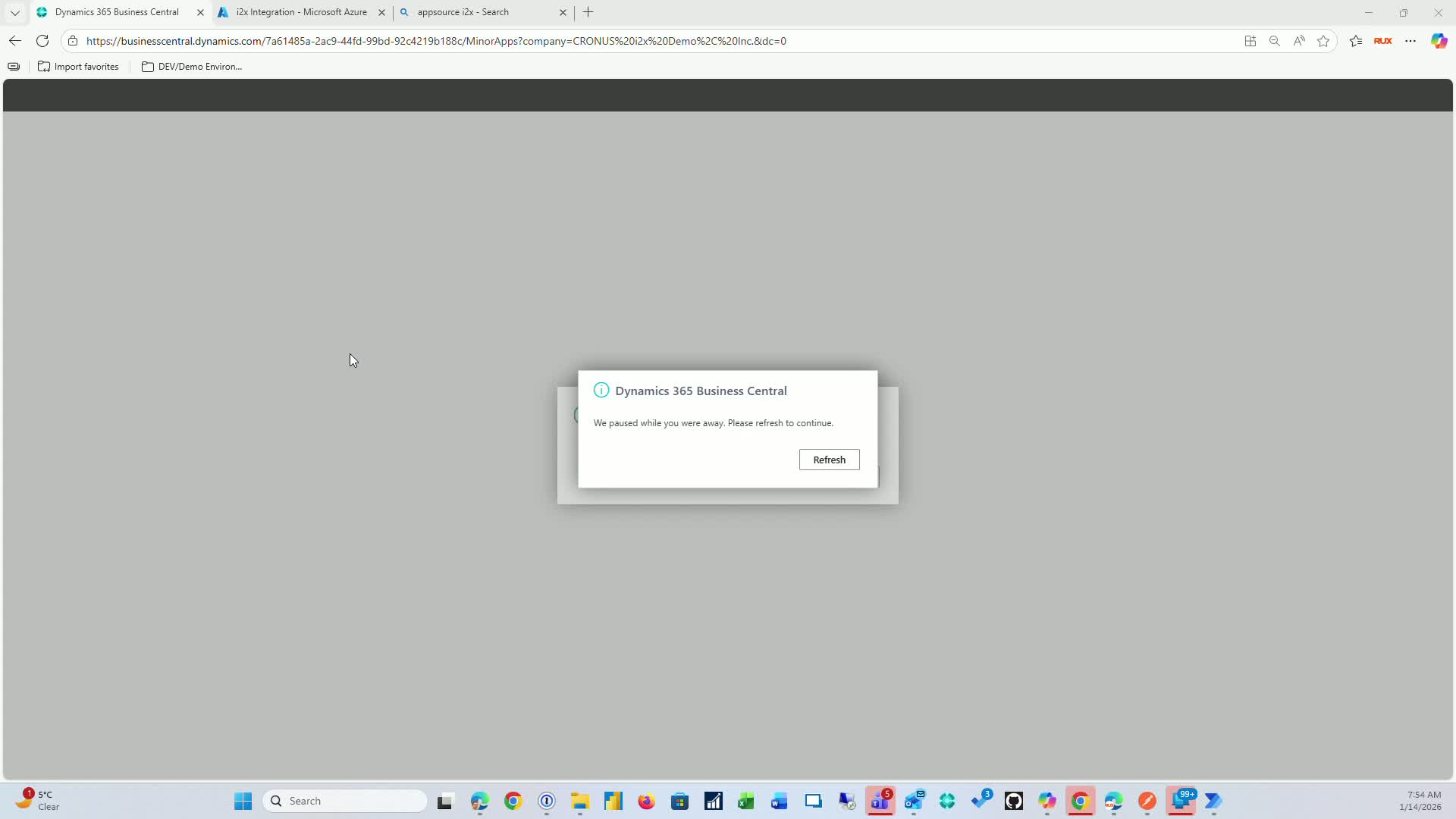
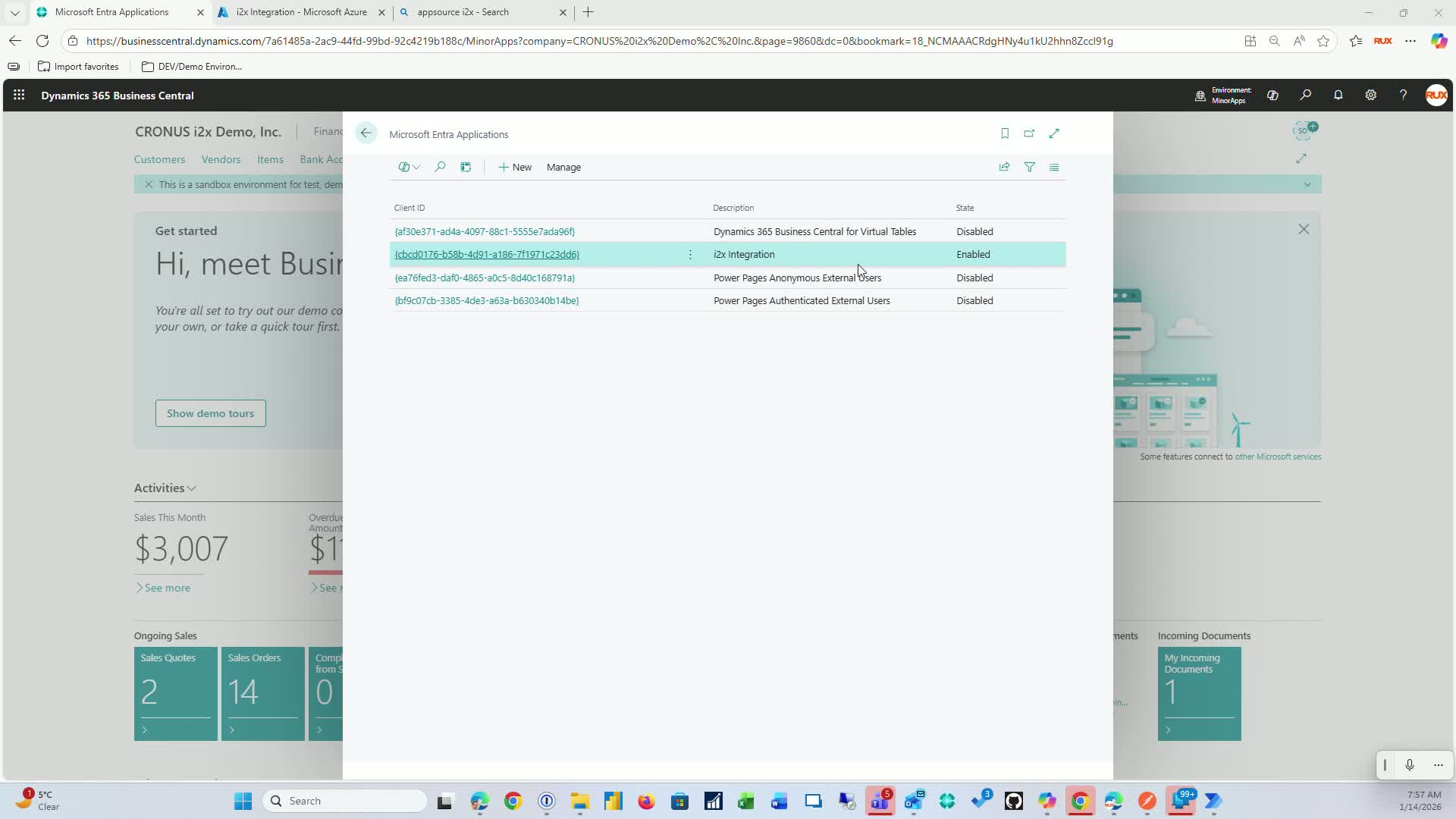
In Business Central, search for the Microsoft Entra application.
Add an application for I2X integration:
Use the same name as in Azure.
Apply the client ID and set a username (e.g., I2X integration).
Grant necessary permissions (e.g., super data access).
7. Verify OData Configuration 4:12
Check the web services in Business Central to confirm that the I2X integration is configured correctly.
8. Set Up Postman for Testing 4:56
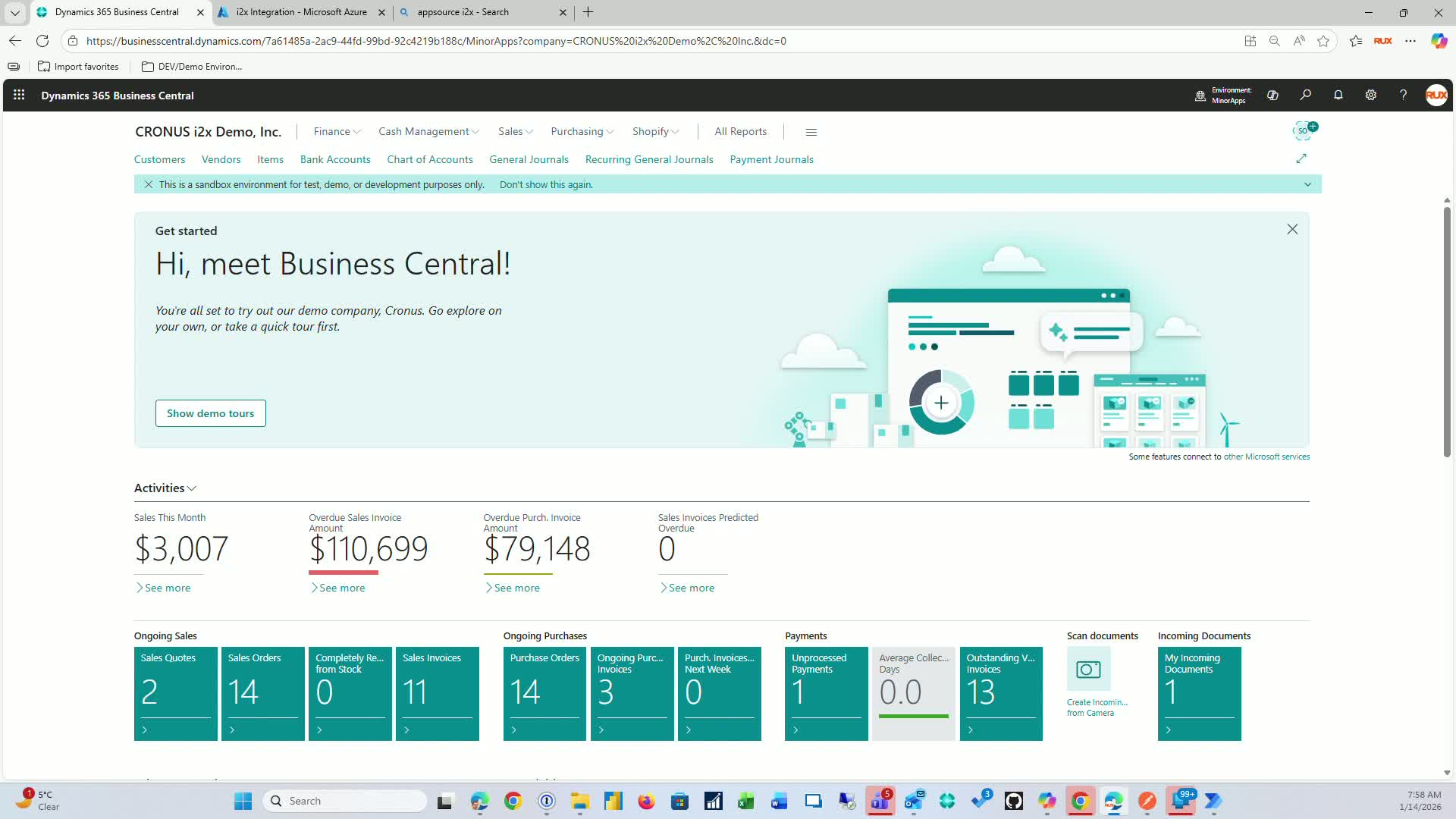
Configure Postman with the I2X cloud instance:
Set authorization to OAuth.
Use the access token URL: login.microsoftonline.com with your Entra ID.
Include the client ID and secret.
9. Configure API Endpoints 6:04
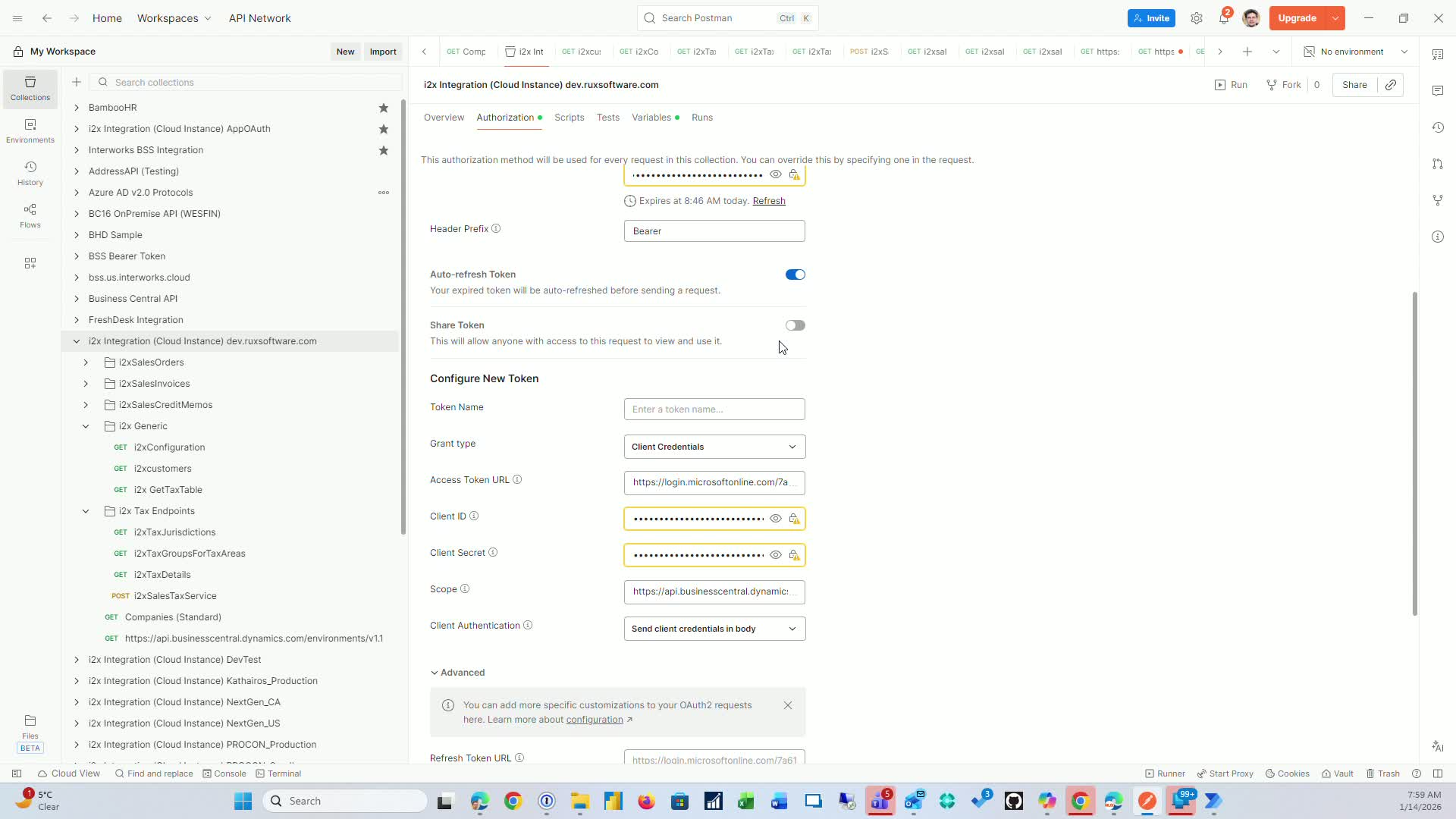
Create a configuration URL in Postman that includes:
API version
Tenant ID
Environment name
Company ID.
10. Test the Integration 7:20
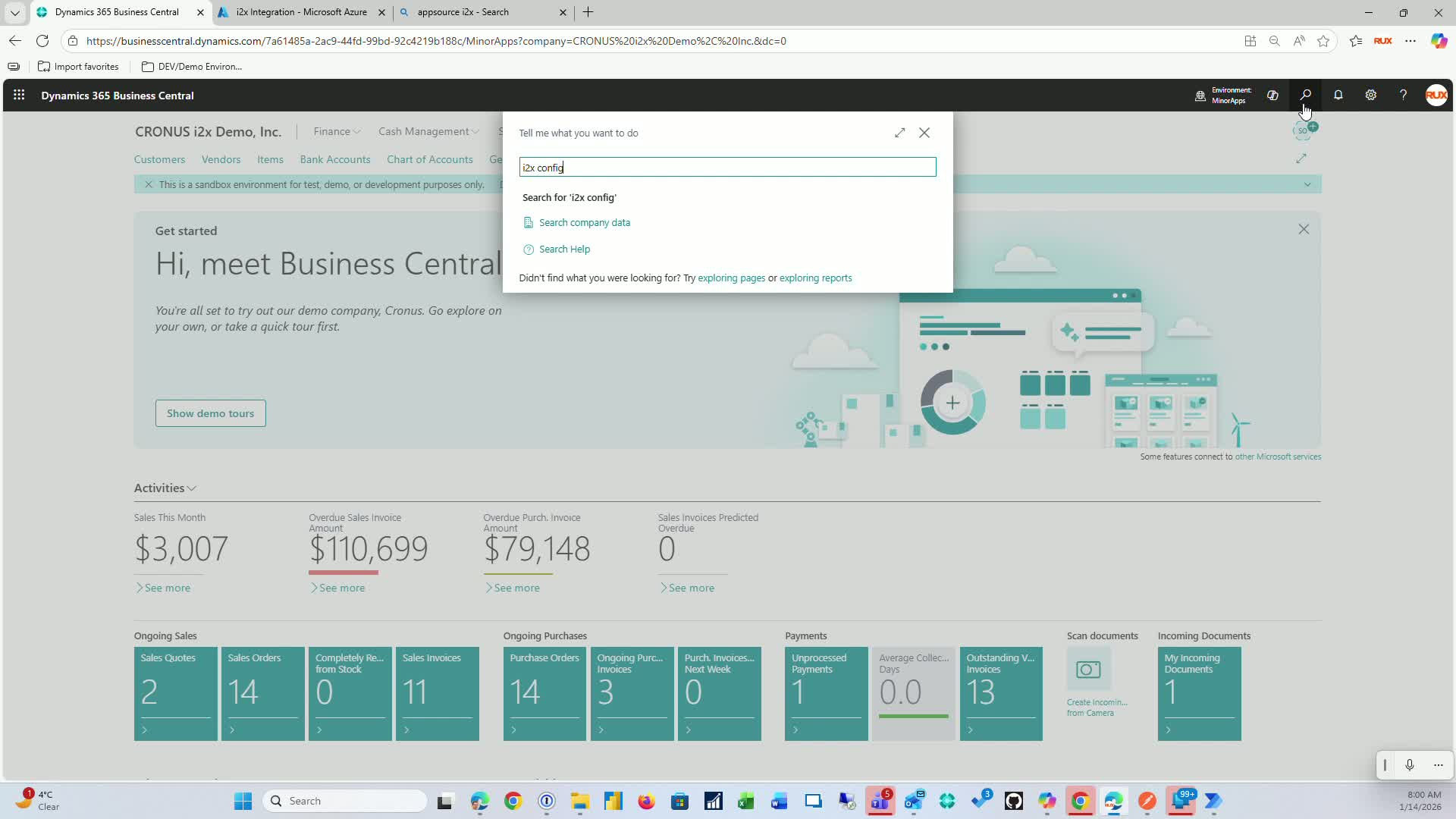
Use the I2X integration setup to retrieve endpoint information.
Test the connection to Business Central using the configuration URL.
Link to Loom
Was this article helpful?
That’s Great!
Thank you for your feedback
Sorry! We couldn't be helpful
Thank you for your feedback
Feedback sent
We appreciate your effort and will try to fix the article