App updates should be managed to make sure you're on the latest and best version available. Once live, unless you opt in the Update Protection plan, you will be self-managing your updates.
Applying app updates is the first step to take when troubleshooting apps. Microsoft, other app providers and our product team regularly release new versions to enhance solutions. Applying app updates often resolves unexpected or undesirable behavior.
If you need assistance with updates or solution use, contact our helpdesk at support@ruxsoftware.com.
Our eagle-eyed reviewers missed a typo or there's a revision to make to our documentation? Send us a note.
Knowing an update is available
While there are no official notifications (as of yet) that updates are available, RUX and other app providers publish information on their different sites and post about updates on social channels. We heard your feedback and are working on notifying designated contacts of RUX apps updates - these notifications are not available yet.
Finding release notes
To know what will be new or changed in an update, review the release notes:
- Business Central current release wave:https://docs.microsoft.com/en-ca/dynamics365/business-central/product-news
- Business Central last minor update: https://aka.ms/BCLastMinorUpdate
- Business Central release plan: https://aka.ms/BCReleasePlan
- Rentals release notes: What's new or changed in RUX Rentals
- Service release notes: What's new or changed in RUX Service
- Documentation for every BC Toolbox app: BC Toolbox
- BC Toolbox release notes: https://support.ruxsoftware.com/support/solutions/17000084641
Applying app updates
Regular updates are crucial for maintaining the functionality and security of your applications. To update your apps: Watch video - How-to update your apps
1. Access the Admin Center
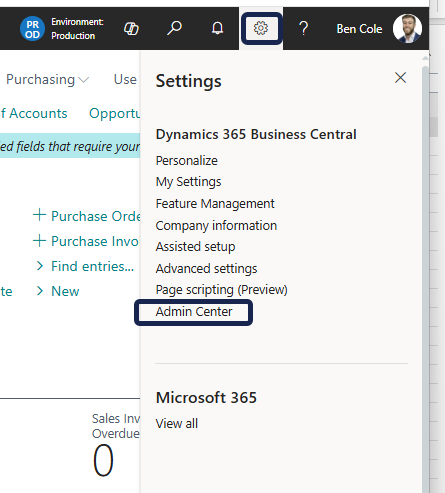
The first step in updating your apps is to access the Admin Center. To do this, locate Settings (gearbox icon) in your Business Central interface. Click on it and select the Admin Center option. This action will open the Admin Center for Dynamics 365 Business Central.
To access the Admin Center, you must have on of these roles in Microsoft Entra ID (formerly Azure AD): Dynamics 365 Business Central Administrator, Dynamics 365 Administrator or Global Administrator. Your IT team or provider can assist in providing you access if you need.
Select your environment
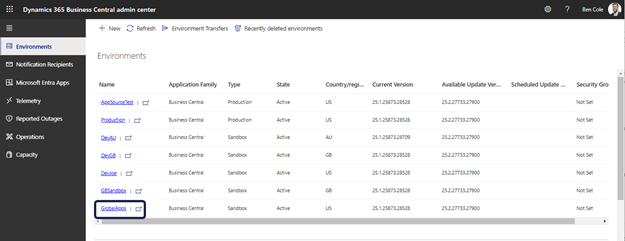
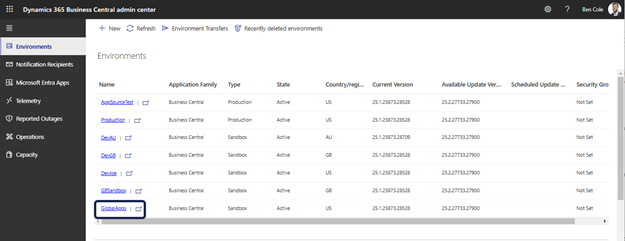
Once you open the Admin Center, you will see a list of all your environments. For this example, we’ll be working within GlobalApps, a Sandbox Environment. Click on the environment you wish to update.
Checking installed apps
After selecting your environment, click on the Apps option. This will prompt the system to check all your apps and determine whether they are up to date. It’s a straightforward process that gives you a clear overview of your installed apps and if they need to be updated. Tip: You can sort the columns to better see the app providers and available update actions.
Update your apps
Select Global Apps to see the Available Update Action. The main Apps page shows all apps and the Uninstall action only. You should not uninstall an app to update it. It could uninstall related apps and prevent a reinstallation. The Uninstall action should only be used when you want to remove an app.
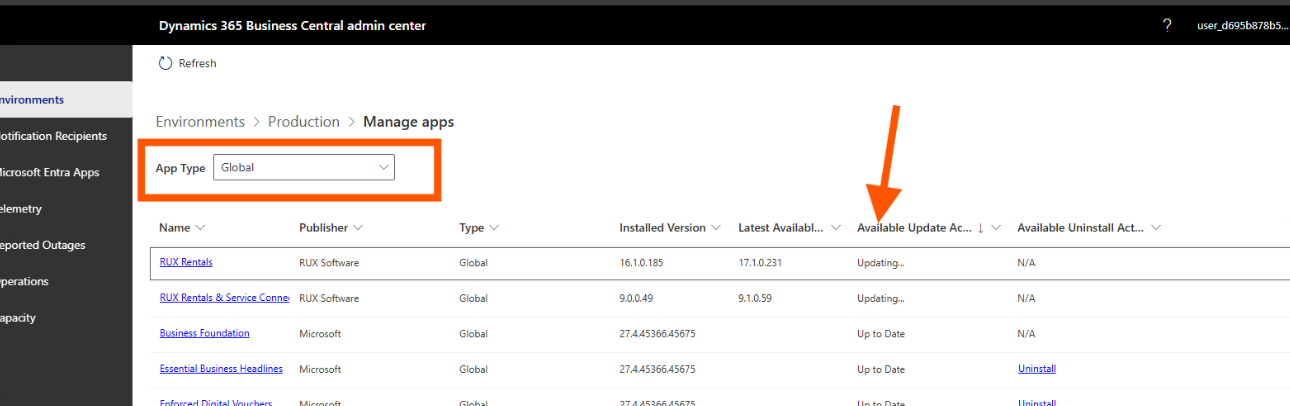
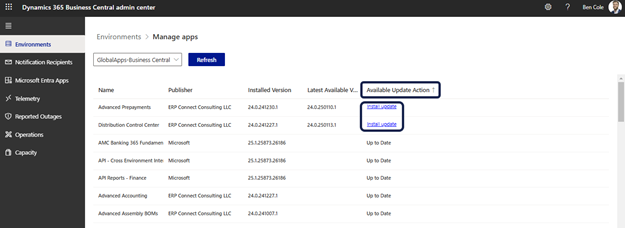
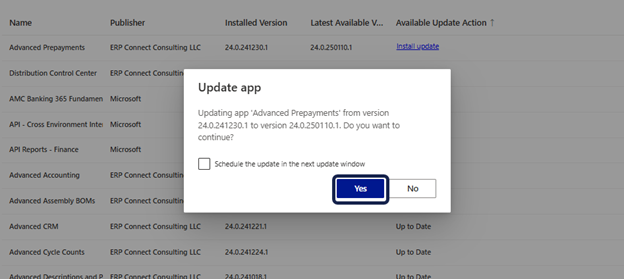
If there are updates available for your apps, you will see them listed once you selected the Global Apps App Type. In our example, updates are available for some of our apps. To proceed with the update, simply click on Install Update and then confirm the update by clicking Yes. This action will initiate the update process. You can also check the box that is seen in the screenshot below, and this will schedule the update to automatically happen during the next update window.
For a successful update process, apply updates for Common or Base apps before you apply other app updates for the same publisher.
Handling app dependencies
Some apps may have dependencies. If an app you are trying to update relies on another app, you will receive a notification indicating that you must first install the required dependency. Follow the prompts to complete the updates.
Monitoring the Update Process
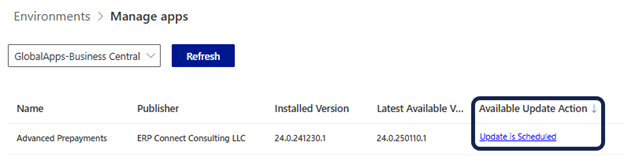
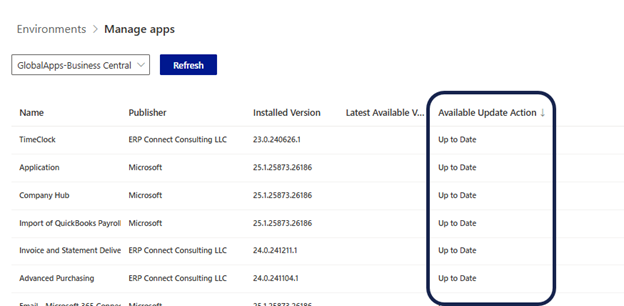
Once you initiate the update, the status will change to Update is Scheduled. You can refresh the page to check the progress. Once the update is complete, it will indicate that the app is Up to Date.
Verifying installed versions
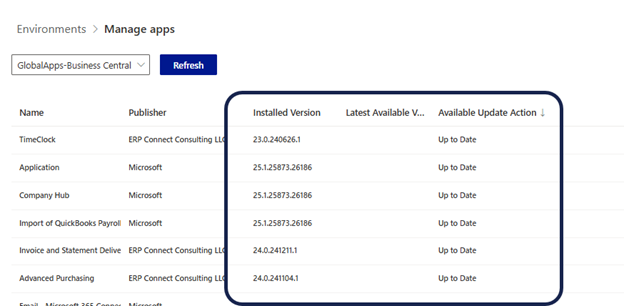
To ensure everything is functioning correctly, you can verify the installed version of your apps. If someone informs you that your app needs updating, this is where you will go to confirm the installed version against the most recent version available. Follow the update process we’ve outlined above to keep everything current.
Environment specific updates
Keep in mind that updates are environment-specific. In our example, we updated the GlobalApps, but you may also have updates available in other environments. Make sure to repeat the update process for each environment you manage to ensure all are up to date.
Was this article helpful?
That’s Great!
Thank you for your feedback
Sorry! We couldn't be helpful
Thank you for your feedback
Feedback sent
We appreciate your effort and will try to fix the article